

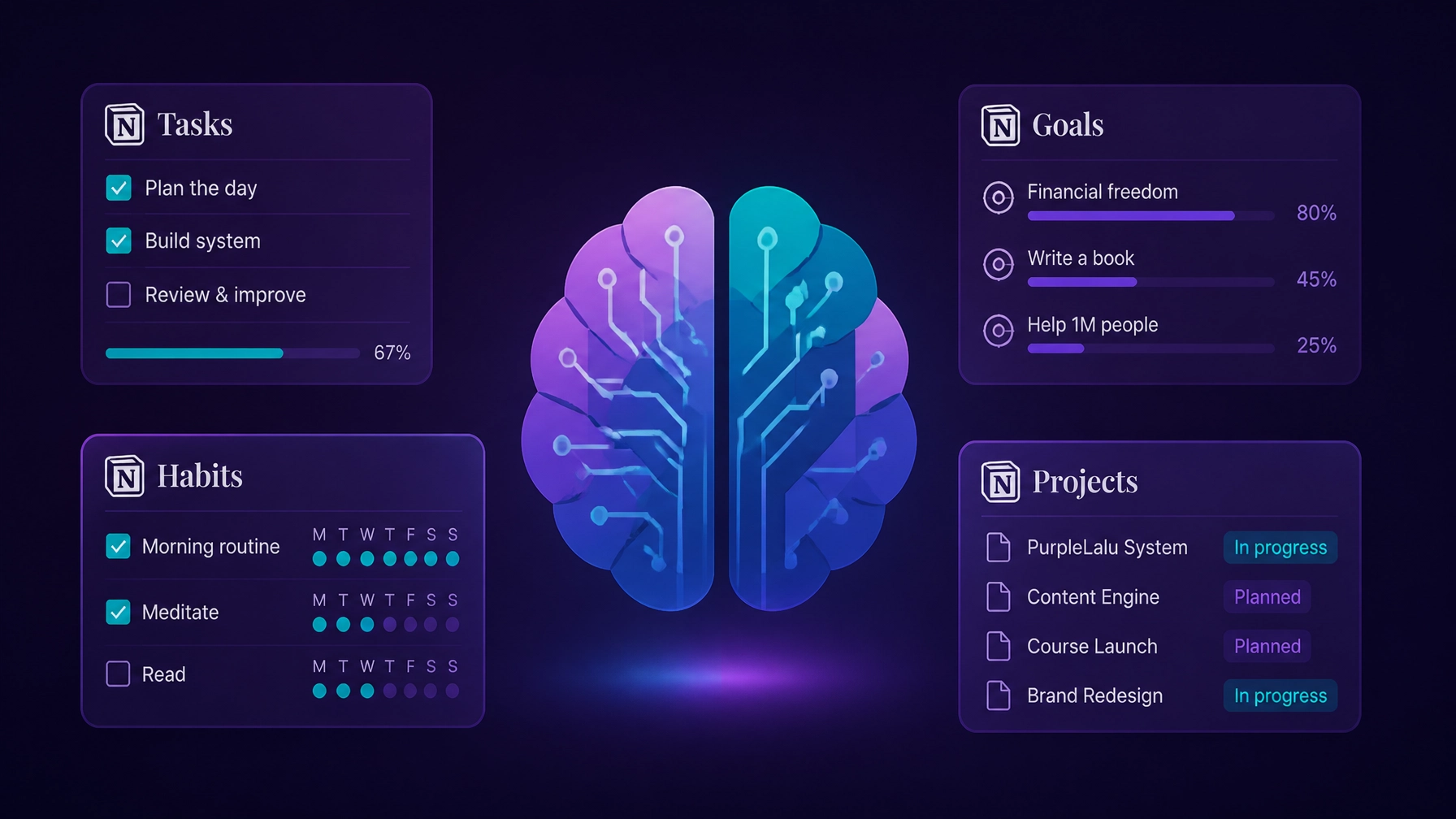
Let’s be brutally honest for a second: Your brain was never meant to be a storage unit.
If you’re a freelancer or solopreneur with an ADHD-wired brain, you know the drill. You’re in the middle of a high-focus design session at 1:00 AM (because that’s when the "magic" happens, right?) and suddenly, a thought strikes. Did I send that invoice? Do I need to buy milk? Is that client project due on Tuesday or Wednesday?
And just like that, the hyperfocus is gone. You’re down a rabbit hole of panicked Google searches and checking four different apps to find one date. You aren't failing at being a professional; you’re just trying to run a complex business using a "working memory" that is currently acting like a sieve.
This is where the concept of an External Brain Notion system comes in. We’re moving away from the "woo-woo" advice of just "trying harder" or "using a planner." We’re building a cognitive prosthesis.
In this Notion for beginners guide, I’m going to show you how to stop relying on your internal hardware and start using Notion automations to do the heavy lifting for you. We’re going to build a system that works 24/7, even when you’re in a "zombie mode" slump or a hyperfocus spiral.
What Is an "External Brain" (And Why Do You Actually Need One?)
An External Brain isn’t just a fancy name for a to-do list. It’s a centralized system designed to capture, organize, and retrieve information so your actual brain doesn't have to. For neurodivergent folks, this is non-negotiable.
According to CHADD, executive function challenges: specifically working memory: are at the core of ADHD productivity struggles. Your working memory is like a small whiteboard. Most people have a whiteboard that can hold 7-10 items. Yours might only hold 2 or 3 before things start getting erased.
An External Brain is a much larger, digital whiteboard that never gets erased unless you tell it to. But a static whiteboard is still work. You have to write on it, organize it, and remember to look at it. That’s why we need ADHD productivity systems that are automated.
We want a system that:
- Captures thoughts instantly (before they vanish into the void).
- Organizes itself (because manual filing is where good intentions go to die).
- Presents the right info at the right time (so you don't get overwhelmed by the "everything, everywhere, all at once" feeling).
Before we dive into the "how," remember that Systems Over Streaks is the name of the game here. We aren't trying to build a perfect habit; we’re building a resilient machine.
And yes, this matters even more if your current "system" is ten half-finished lists, three random Notes app screenshots, one Slack message you starred in a panic, and a Notion workspace that somehow has five task databases because "this one felt cleaner at the time." (Respectfully: that’s not a workflow. That’s a scavenger hunt.)
Researchers call this cognitive offloading: using external tools to reduce the strain on your internal memory. A review in Psychonomic Bulletin & Review found that "intention offloading" can be highly effective for helping people remember delayed tasks and future actions, which is basically science confirming what ADHD business owners have been screaming into the void for years: if it lives only in your head, it is not safe (Springer review here). Another review in Nature Reviews Psychology digs into both the benefits and tradeoffs of cognitive offloading, but the headline still stands: external systems can meaningfully reduce memory strain when designed well (Nature review here).
That’s why Notion automations matter so much. Not because automation is trendy. Not because we’re trying to cosplay as tech bros with dashboards. But because every manual step adds cognitive drag. Every extra click, every tiny decision, every "I’ll categorize this later" moment is another opportunity for your brain to quietly exit the building.
The Mental Load of Maintenance
Here’s the part nobody talks about enough: manual maintenance is where good systems go to die.
Not because you’re lazy.
Not because you “lack discipline.”
Not because you just need to want it more.
Because maintenance is invisible labor. And invisible labor is brutal for ADHD brains.
It’s the tiny stuff:
- changing a status after you finish a task
- typing the same category over and over
- moving items from one list to another
- remembering which database a task belongs in
- opening six pages to find one unfinished idea from last month
- manually rebuilding your week every Monday like you’re the unpaid intern of your own business
That mental load adds up fast. And if your business backend depends on you doing a hundred boring micro-decisions correctly and consistently, your system is basically one rough week away from becoming digital wallpaper.
This is where automation stops being a "nice extra" and starts being what it actually is: the cognitive prosthesis we deserve.
A prosthesis isn’t cheating. It’s support.
A ramp isn’t laziness. It’s access.
An automated Notion workspace isn’t indulgent. It’s infrastructure.
The official Notion database automations guide explains the mechanics, but the practical point is simpler: automation removes repeat decisions that your brain should never have been forced to babysit in the first place.
So as you read the rest of this Notion for beginners guide, keep one question in mind:
What can the system remember, sort, stamp, surface, or reset so you don’t have to?
That question will save you more time than any color-coded productivity hack ever could.

Introduction to Notion Automations: The Magic Lightning Bolt ⚡
If you’ve been using Notion for a while, you’ve probably seen that little lightning bolt icon at the top of your databases. If you haven’t clicked it yet, you’re about to meet your new best friend.
Notion automations are essentially "If This, Then That" (IFTTT) logic built directly into your workspace.
- The Trigger: Something happens (e.g., a page is added, a status changes).
- The Action: Notion does something automatically (e.g., updates a date, checks a box, sends a notification).
For a beginner, this might sound like you’re "wearing a strategy costume" and pretending to be a developer. You aren't. It’s surprisingly simple, and once you set it up, you never have to think about it again. (Which is the whole point, because "thinking about it" is exactly what we’re trying to avoid).
If you want the deep-dive technical manual, the official Notion Database Automations guide is great, but here, we’re going to focus on the unsexy, practical stuff that actually keeps your business from burning down.
Tutorial 1: The "No-Brainer" Status Update (Move to 'Done' = Date Stamped)
One of the biggest friction points in any Notion automation tutorial is the manual tracking of progress. You finish a task, you feel that tiny hit of dopamine, and then you have to… type in today's date? No. We’re better than that.
We want Notion to automatically record when we finish something. Why? Because The External Brain Audit proves that we often feel like we’ve done "nothing" when, in reality, we’ve been productive. We need the receipts.
Step-by-Step: The Completion Stamp
- Open your Task Database. If you don't have one, create a simple table with a "Status" property (Select or Status) and a "Date Completed" property (Date).
- Click the ⚡ icon at the top right of the database.
- Click "+ New automation."
- Set the Trigger:
- Select "Property edited."
- Choose your "Status" property.
- Set the condition to "Status is Done" (or "Complete," "Finished," whatever you call it).
- Set the Action:
- Select "Edit property."
- Choose "Date Completed."
- Select "Now" or "Today."
- Name it "Auto-Stamp Done" and hit Create.
Now, every time you flip a task to "Done," Notion logs the exact moment you did it. You can now create a "Wins" gallery that shows everything you finished this week without having to remember a single date.
Side note: If you’re struggling with why your current setup feels clunky, check out our guide on 7 Mistakes with Your ADHD Notion Setup. Spoiler: Over-complicating this step is one of them.

Tutorial 2: Creating a 'Brain Dump' to 'Sorted' Workflow
The "Brain Dump" is the holy grail of ADHD management. But let's be real: most brain dumps just become a digital graveyard of "things I should do but will never look at again."
To make this part of a functioning External Brain Notion, we need an automation that categorizes things the moment they enter the system.
The Problem: Decision Fatigue
When you have an idea, you need to capture it now. If the system asks you "What project is this for? What is the priority? What is the deadline?", your brain will likely short-circuit and you'll just go back to scrolling TikTok. (It’s okay, we’ve all been there).
The Solution: The 1-Click Inbox
We’re going to create an automation that sets a default "Inbox" status to every new item so you can dump and run.
- In your Task Database, click the ⚡ icon.
- Click "+ New automation."
- Set the Trigger: Select "Page added."
- Set the Action:
- Select "Edit property."
- Choose "Status."
- Set it to "Inbox" (or "To Process").
- Bonus Action: Set the "Created By" or "Energy Level" to a default value if you always start at "Low Energy."
- Hit Create.
Now, use a Notion Button on your phone’s home screen (using the Notion widget) that just opens a new page in this database. You type the thought, hit enter, and walk away. The automation ensures it's waiting for you in your "Inbox" view later.
This is a core part of a Notion Automation Tutorial that actually sticks. You aren't "organizing"; you’re just "dumping," and the system is doing the filing.
Tutorial 3: Using 'Synced Blocks' for Universal Visibility
One of the fastest ways to lose track of your business is to have your "Strategy" on one page and your "To-Do List" on another. If it’s out of sight, it literally does not exist. (Object permanence is a struggle, folks).
Synced Blocks aren't technically an "automation" in the ⚡ sense, but they are an automated way to keep information consistent across your entire workspace.
How to set it up:
- Create your "North Star" block. This might be your top 3 goals for the week or a link to your Content Command Center.
- Highlight the block(s) and click the six-dot menu.
- Select "Turn into Synced block." The border will turn red.
- Click "Copy and sync."
- Paste this block everywhere. Put it at the top of your Daily Reset page, your Client Portal, and your Project Tracker.
Now, when you update your goals on any of those pages, they update everywhere. You no longer have to manually sync your brain across different "modes." This is vital because Why Time-Blocking Fails Your ADHD Brain often comes down to losing sight of the big picture while you’re in the weeds.

The "Feral" Reality of Business Systems
Let’s pause for a "no-nonsense" reality check. You will set these up, and for three days, you will feel like a productivity god. You will walk around with the confidence of a person who actually knows where their car keys are.
And then, Tuesday will happen. You’ll get a weird email, your coffee will spill, or you’ll just wake up feeling "feral" and unable to look at a screen.
The beauty of an External Brain is that it doesn't care.
Unlike a paper planner that judges you with empty pages, these automations are "keeping receipts" for you. When you finally come back to your desk on Thursday, your Inbox will be waiting, your Done dates will be recorded, and your Synced Blocks will still be showing you the way.
This is the difference between "discipline" and "systems." You don’t need more discipline. You need a system that assumes you’re a human who sometimes loses their mind for 48 hours.
And honestly? That’s why this pairs so well with support structures outside your dashboard too. If you know you do better with accountability, Body Doubling 101 is worth a read, and if you want actual support while you work, our body doubling sessions exist for exactly this reason. A good system reduces friction. A good support structure helps you use it on the days your brain would rather become mist.
Taking it Further: Beyond the Basics
Once you’ve mastered these three, you can start looking at more complex workflows, like Automating Your Onboarding. Imagine a world where a client pays an invoice and Notion automatically:
- Creates a new project page.
- Tasks you with "Send Welcome Gift."
- Emails the client their login link.
That’s the "Works 24/7" part of the title. If you want to see how this looks in a fully-built environment, our Content Command Center is basically a masterclass in these types of ADHD-friendly automations.
Why this works for ADHD:
- Reduces Cognitive Load: You stop asking "What do I do next?" because the filters show you.
- Dopamine Loops: Seeing the "Done" stamp happen automatically is weirdly satisfying.
- Consistency without Effort: The system maintains itself, so you don't have to.
The deeper truth here is that the best Notion automations are not flashy. They are almost boring. They quietly handle maintenance, keep old ideas alive, and make it easier to restart after a hard week.
That’s the whole game.
Not perfection.
Not streaks.
Not becoming a person who never forgets anything ever again.
Just building a workspace that is better at remembering, surfacing, and supporting than raw willpower has ever been.
If this post is making you realize your current setup is doing way too much manual labor, you’re not broken. Your backend is just asking too much from your working memory. That’s fixable.

Conclusion: Start Before You Feel "Ready"
If you’re waiting for a weekend where you have "enough time" to overhaul your entire Notion, you’re never going to do it. That’s a trap.
Pick one of the tutorials above. Just one.
- Set up the "Done" stamp.
- Or create your "Inbox" automation.
- Or build one actual Global Task Database and stop scattering your life across ten tabs.
Spend 10 minutes on it today. Not tomorrow. Not when you've "cleared your plate." Do it now while you're still reading this (and probably procrastinating something else anyway: I see you).
Building an External Brain Notion is a journey, not a destination. It’s about making your business run smoother so you can spend less time fighting your brain and more time doing the creative, weird, brilliant work that only you can do.
If you want a ready-made way to start, check out the Content Command Center for capturing and resurfacing ideas, or the Finally Focused Foundations Pack if you need stronger operational structure overall.
And remember: Start building systems, not streaks. Your brain will thank you.

